
How to Export: Books
Before exporting, it's important to understand that Shaxpir has two different export workflows:
-
Entire Books (this article) - Export a complete book project including all chapters and notebook pages. We'll explain this below.
-
Individual Content Items - Export a single article, short story, idea, or individual chapter/notebook page (see the How to Export: Articles, Short Stories, and Ideas guide)
This guide covers exporting complete book projects.
How to Export a Book
Open your book in the editor and click EXPORT in the left-hand navigation menu.
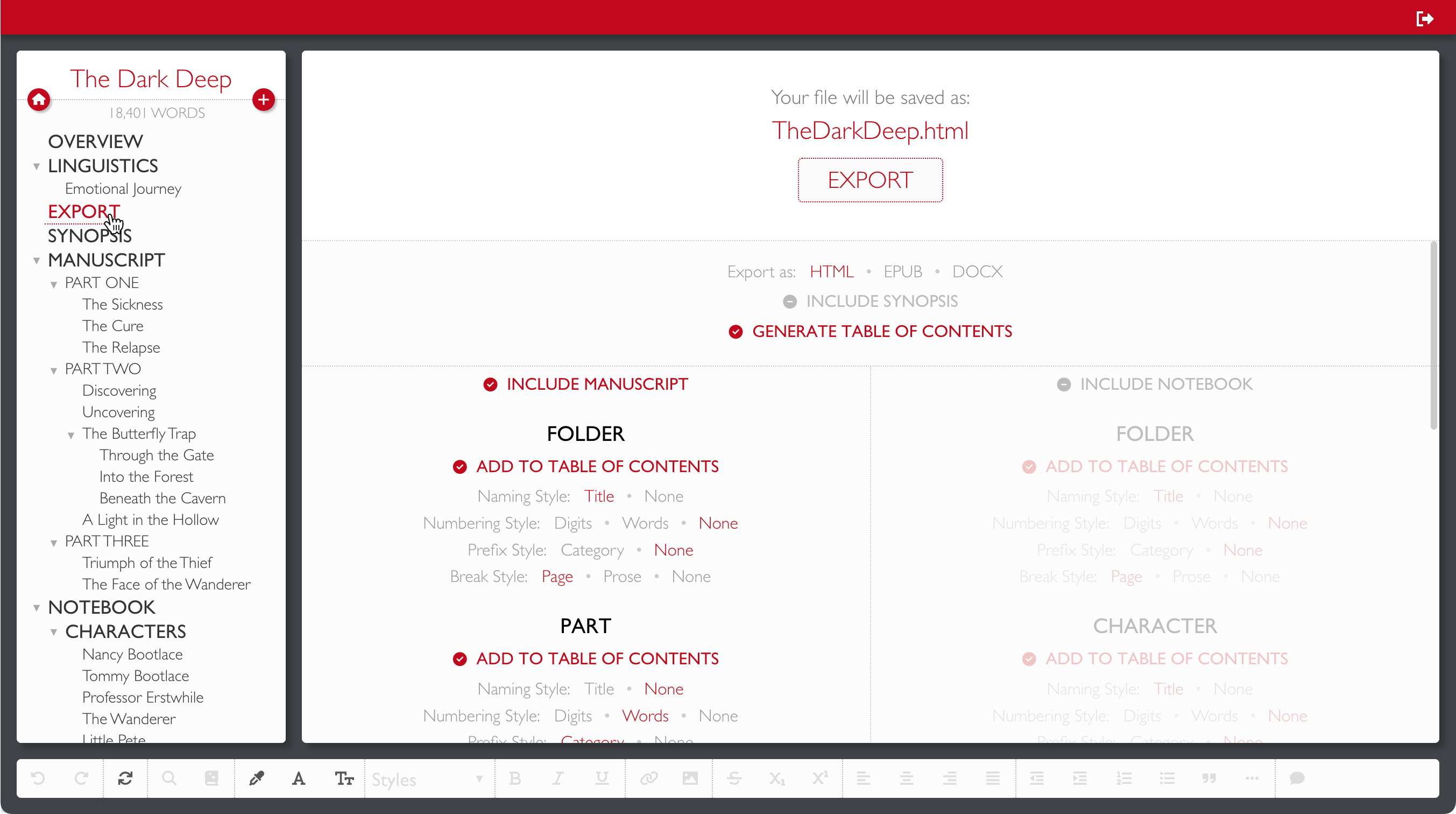
This will open the Book Export Panel with configuration options for your export.
Basic Export Options
At the top of the panel, choose your export format:
- HTML - Single webpage file
- EPUB - E-book format for e-readers
- DOCX - Microsoft Word document
You can also toggle these options:
- Include Synopsis - Include the book's synopsis in the export
- Generate Table of Contents - Automatically create a table of contents
Choosing What to Include
The export panel has two main sections:
- Include Manuscript - Export your book's chapters, parts, and scenes
- Include Notebook - Export your worldbuilding notes, character profiles, and research
Toggle either or both sections depending on what you want to export.
Formatting Your Export
The middle section of the panel shows the structural elements in your book (Parts, Chapters, Folders, etc.). For each element type, you can configure:
Add to Table of Contents - Whether this element appears in the generated table of contents
Naming Style:
- Title - Include the item's name (e.g., "The Big Reveal")
- None - Don't include the name
Numbering Style:
- Digits - Use numbers (1, 2, 3)
- Words - Use words (One, Two, Three)
- None - Don't include numbers
Prefix Style:
- Category - Include the element type (e.g., "Chapter", "Part")
- None - Don't include the category
Break Style:
- Page - Start this element on a new page
- Prose - Insert a prose break (* * *)
- None - Continue from previous content
Example Formatting
These options can be combined to achieve different styles:
- "Chapter 22" - Category prefix + Digits numbering, no title
- "Chapter Twenty-Two: The Big Reveal" - Category prefix + Words numbering + Title
- "22" - Digits numbering only, no prefix or title
- "The Big Reveal" - Title only, no numbering or prefix
Numbers are tracked independently by category, so you might have Part One containing Chapter 1 and Chapter 2, then Part Two containing Chapter 3 and Chapter 4.
Exporting Your Book
Once you've configured your options, click the EXPORT button. If you’re using the web app version of Shaxpir in your browser, the file will be downloaded to your Downloads folder. If you’re on the desktop version of Shaxpir, the file will be saved to your Desktop folder.
What's Included in the Export File?
The export file will include:
- Cover artwork, if any
- A title page, with optional details like your author name, copyright, ISBN, etc
- All selected chapters and manuscript content
- All selected notebook pages and notes
- Any images embedded in the body text of included items
- Formatting as configured in the export panel
The export does not include concept artwork or comments from the margins of the Shaxpir editor, or connection-links between content items.
Need help with your export?
If you have trouble with the export process, or if you have any other questions, please contact us at support@shaxpir.com